Welcome to CitySprint's SameDay online booking system. The key principles of the system are: accounts (bookings are made and managed against individual accounts) and groups (how people use accounts - either as administrators or users).
Account structure
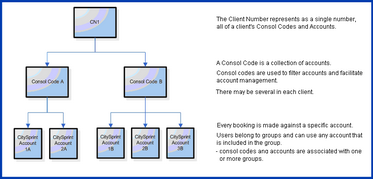
Bookings are made and managed against individual accounts. Accounts are organised into consol codes which belong to a client number. Default settings are usually applied at the client level by CitySprint and cascaded down to accounts.
 |
| Click the image to enlarge/reduce it |
Groups control what people can do with accounts
 |
| Click the image to enlarge/reduce it |
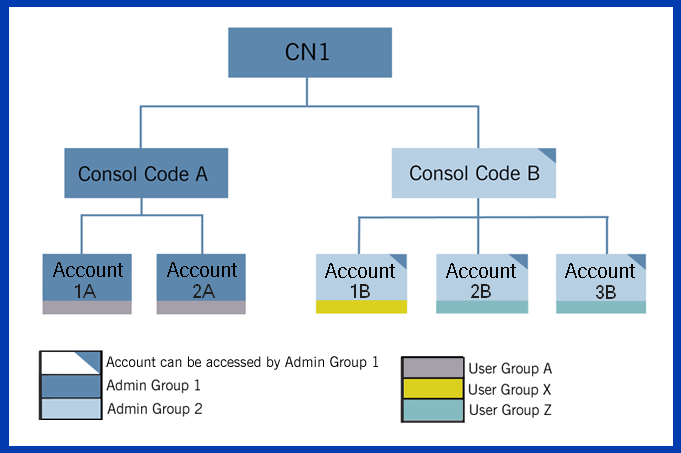
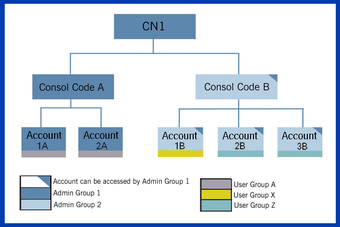
| • | The diagram represents a typical business scenario: each User Group is a different location and each consol code is used by a different business division. People assigned to Admin group 1 are responsible for administering SameDay online and reporting on booking account usage across the company. |
| • | CitySprint created Admin group 1 and assigned at least one client-based administrator to it. |
| • | Anyone in Admin group 1 can see all accounts and all the SameDay online menus including the menu which enables them to manage the system. |
| • | An administrator from Admin group 1 created Admin Group 2 and User Group A; therefore any administrator from Admin group 1 can amend them. |
| • | An administrator from Admin Group 2 created User Group X and User Group Z. Administrators from Admin group 1 can view, but not modify, these user groups. |
| • | People in Admin Group 2, User Group X and User Group Z cannot see Consol Code A or accounts 1A and 2A. Similarly, people in User Group X can only see account 1B and people in User Group Z only see accounts 2B and 3B. |
|
| • | A group consists of one or more accounts and one or more people who all use those account(s) in exactly the same way. |
| • | People (users or administrators) are assigned to the group that allows them to carry out their particular business responsibilities. |
| o | each person can only belong to one group at a time. |
| o | people who are assigned to admin groups automatically get administrator privileges. |
| • | An account can be assigned to one or more groups and behave differently from group to group. In this way, groups reflect business function. |
| o | Each account in the group has settings which are tailored to enable the people in the group to do their jobs. Each account brings some inherited settings, but administrators can refine these default account settings (such as vehicle options or screen access permissions). |
Example: account NN is added to two groups (Bookers and Accounts). Account NN's settings in Bookers group give members access to screen. Account NN's settings in Accounts group only give members access to the screen.
| • | Groups can be adapted to changing business needs. |
| • | All groups inherit their accounts and account settings from, and are managed by, the admin group that created them. |
|
|
To book couriers online using a company credit card, Jo will not need to administer the system. You need to:
| 1. | Ensure that there is a user group that contains just the account(s) which Jo needs to make bookings. |
See Creating admin/user groups
Check the settings of each account in the group ... ensure that they provide the right options for Jo and that any menus that should not be there have been switched off. Note that any changes made to an account's settings in this group will affect all users in the group.
| 2. | Add Jo to the SameDay online system as a user (not an administrator) and assign Jo to the group you identified in step 1... this needs a unique user email ID and a unique staff reference number. |
See Creating users
Jo will get an email with login name and password, and an invitation to log into the system.
| 3. | Ask Jo to set up the company credit card details through the menu. |
See Setting up payment/credit cards
|
Client-based administrators:
| • | All aspects of your access to accounts and menus are controlled by your group's settings (the group that you belong to). |
In addition to the using the menu your group may also allow you to make bookings and/or generate account-usage reports.
| • | You have admin permissions so you can: |
| o | create and manage admin/user groups and give them some/all accounts which you can access. |
| o | add people to the system, change their details, block individuals or groups from logging in or delete people from the system. |
| o | assign people to admin or user groups which match their business responsibilities. |
| o | set up global address books for your accounts - bookers can use these addresses. (Global address books can be set up by bulk upload using a .CSV file or by adding addresses individually.) |
| o | set up a series of linked data to automatically populate the screen and help speed up the booking process for any accounts that you manage. |
| o | change the branding for any of your accounts - logos are displayed in the right-hand floating panel of every screen. |
| o | add another level of post-login security by setting up security questions - anyone who wants to book a courier against the account has to answer the questions correctly. |
| o | perform a number of management tasks by uploading/downloading .CSV files. |
|
All aspects of your access to accounts and menus are controlled by your group's settings.
Users, you can do everything that is permitted by the user group to which you belong... this may include booking and/or generating reports for different accounts.
|
Related topics
Administrators who need to develop an understanding of the SameDay online booking system should read: