Linked fields can significantly cut down the time and user input required to make a booking.
When a user enters a booking code (in the screen) which matches a pre-defined value, the other linked fields (up to 10) are automatically populated with pre-defined data. The "trigger" field is known as the and is always a booking code. The associated fields include sender information and most of the Collection/Delivery panel data.
Providing that the Key Field/Data combination is used once only per account, the same Link To/Data combinations can be re-used as many times as required in the same account or multiple accounts. Individual sets of links can be amended/deleted by administrators who have adequate account/consol code permissions
Before you start
| 1. | You must have administrator privileges for the consol code(s)/account(s) for which you need to maintain linked fields. |
| 2. | Identify the consol code(s)/account(s) which will be added to/removed from this set of linked fields. |
| 3. | Identify changes to the , the "trigger" data and associated fields and data. |
| 4. | Check that the modifications do not clash with existing linked fields. |
Actions
The system displays all the accounts and associated linked fields that you are permitted to access.
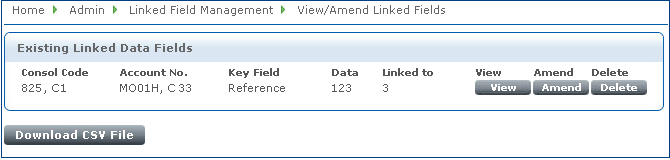
| a) | View: displays all the linked fields for the selected consol code(s) / account(s) in read-only format. |
| b) | Amend: displays all the linked fields for the selected consol code(s) / account(s) enabling you to add, modify or delete individual linked fields. You can also modify the and its data. |
If you choose , go to step 3.
| c) | Delete: removes the whole set of linked fields for the selected consol code(s) / account(s). |
| 3. | Go to the panel. Find and move the required account(s) to the list. |
| 4. | Amend the and related field as necessary. The field constraints are listed in Linked fields. |
| 5. | Check the existing linked fields: |
| a) | Click Delete to remove existing linked fields one by one. |
| b) | To modify an existing linked field choose a different item from the dropdown list. |
| c) | Type the required value into the related field. The field constraints are listed in Linked fields. |
| d) | To append more linked fields, click Add Next and define the field and related field. |
Save (save and stay on the same page) / Save & Close (save and leave the page) / Close (cancel the changes).
Related topics
